Get Started with Lenwork
Your real-time AI interview copilot. Installed and ready in about three minutes.
lenwork.com
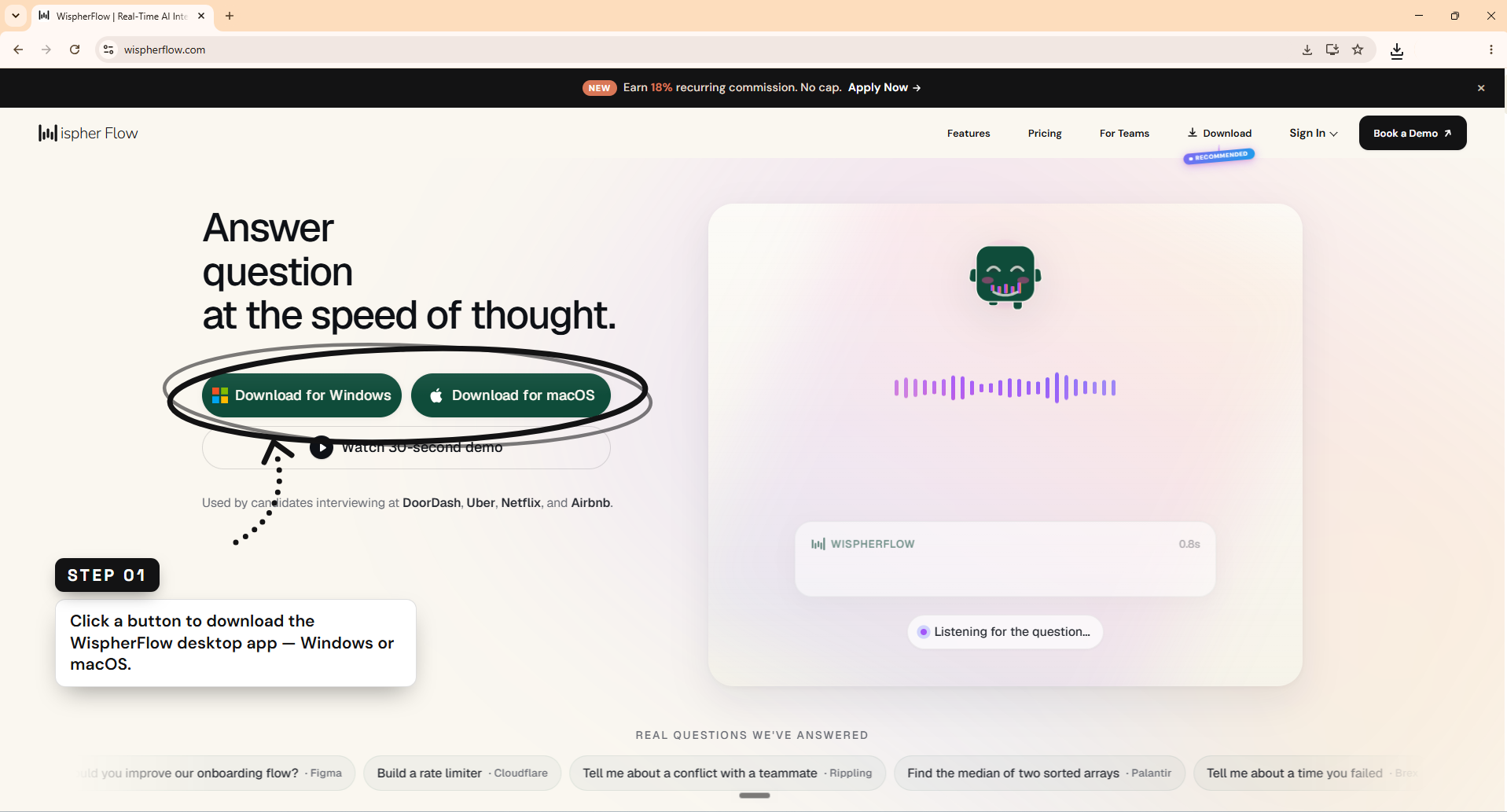
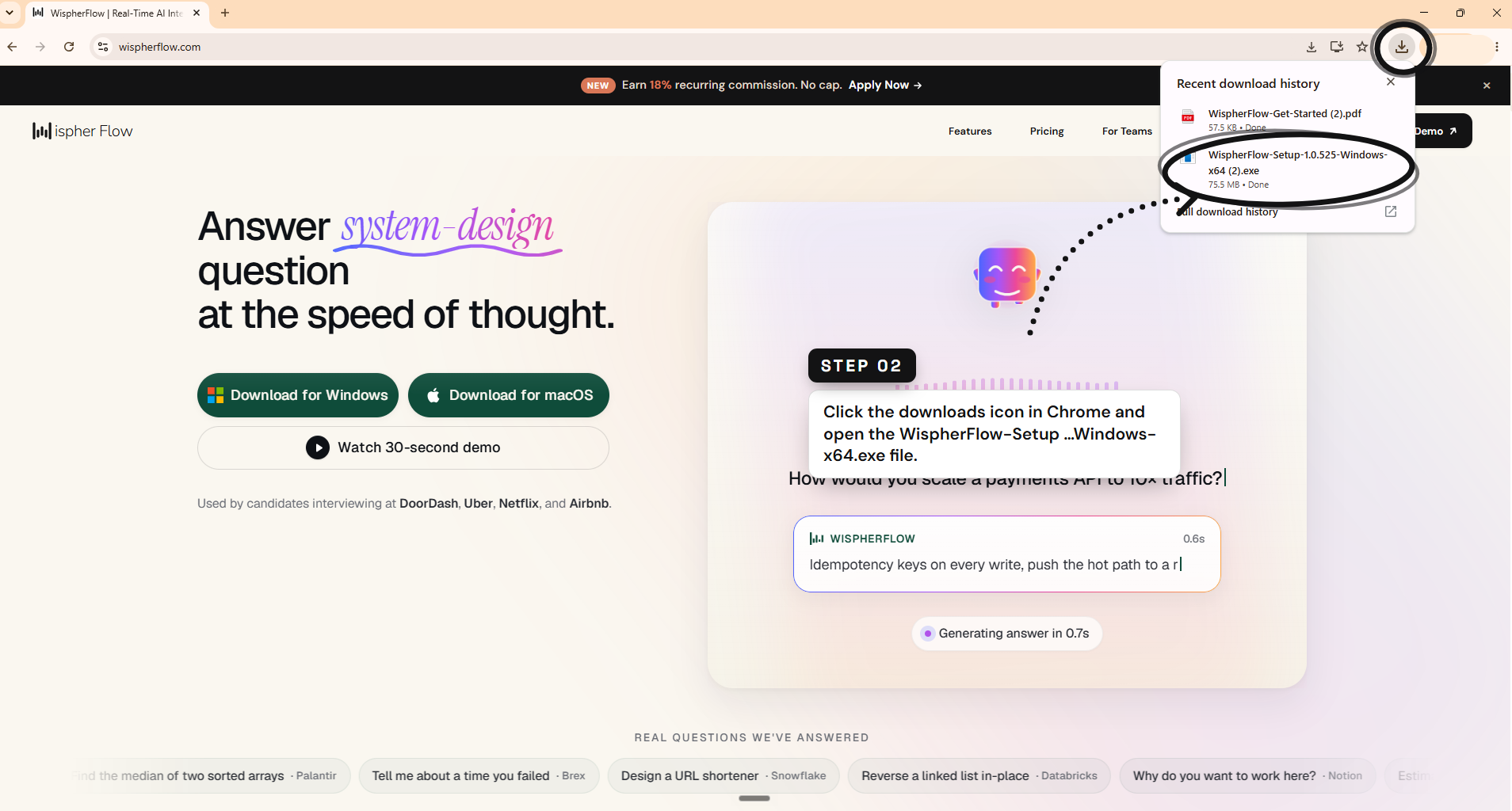
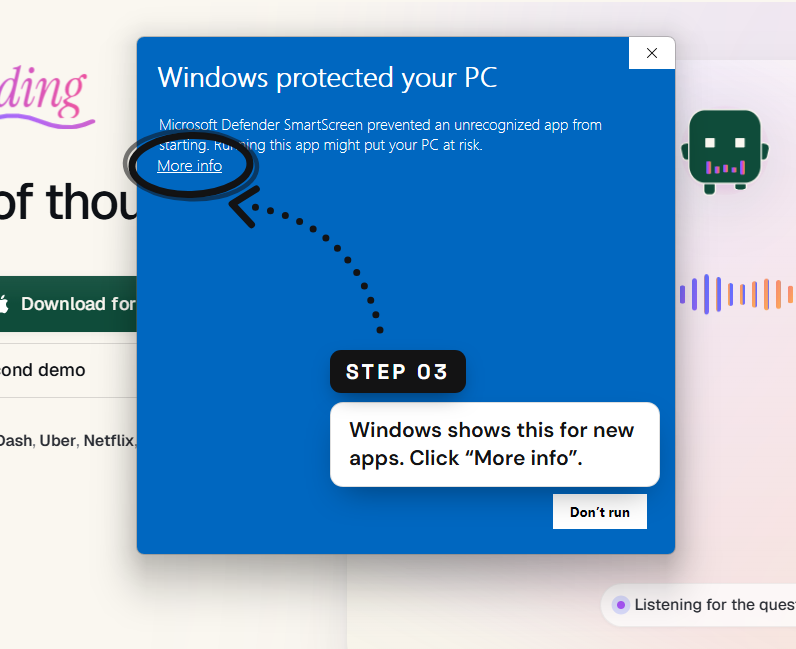
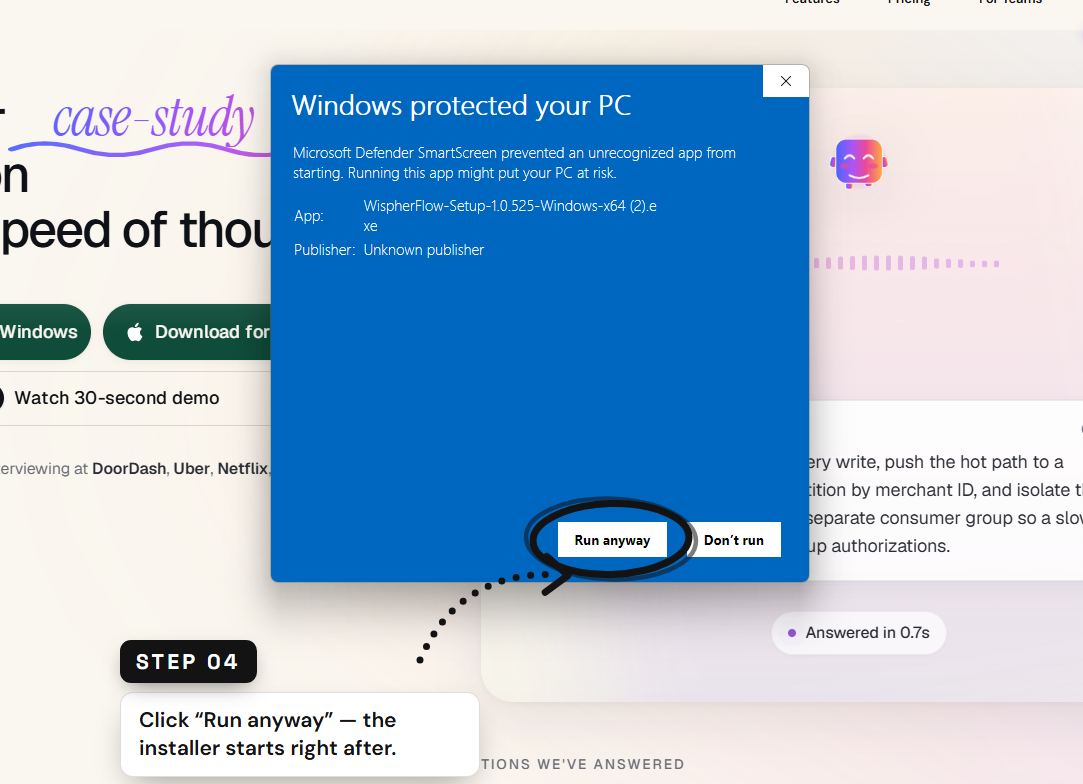
Thanks for downloading Lenwork. This short guide covers everything you need to install the app, sign in, and run your first session — pages 2–6 walk through the Windows install with real screenshots. For the full guide, visit lenwork.com/docs.
Install on Windows
- Open the downloaded
Lenwork-Setup-Windows-x64.exefrom your Downloads folder. - If Windows shows a "Windows protected your PC" notice, click More info, then Run anyway. Windows shows this for new apps — it's safe to continue.
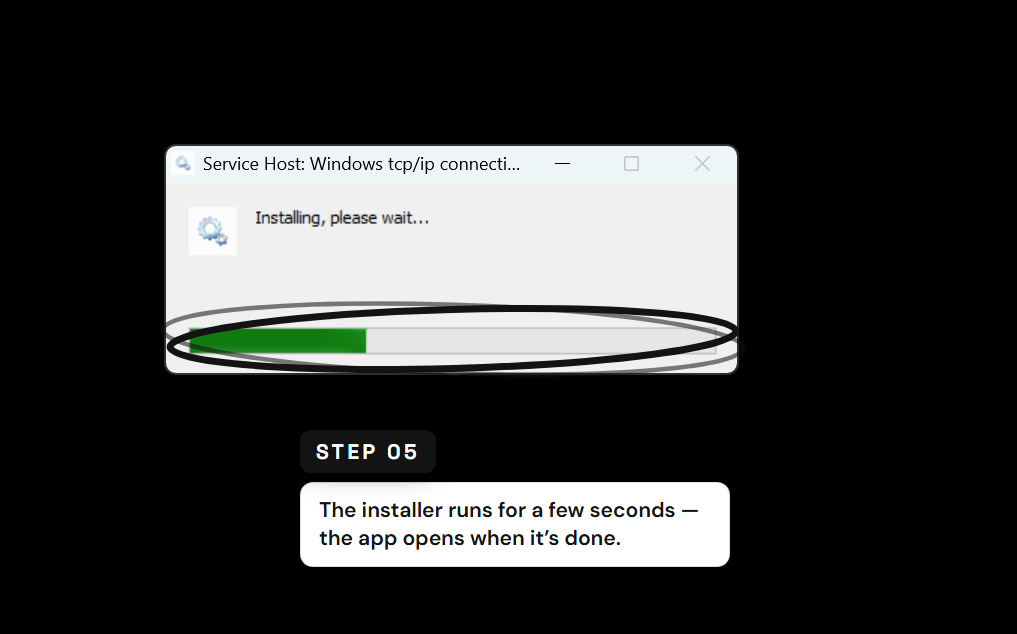
- The installer runs and Lenwork opens on its own when it finishes.
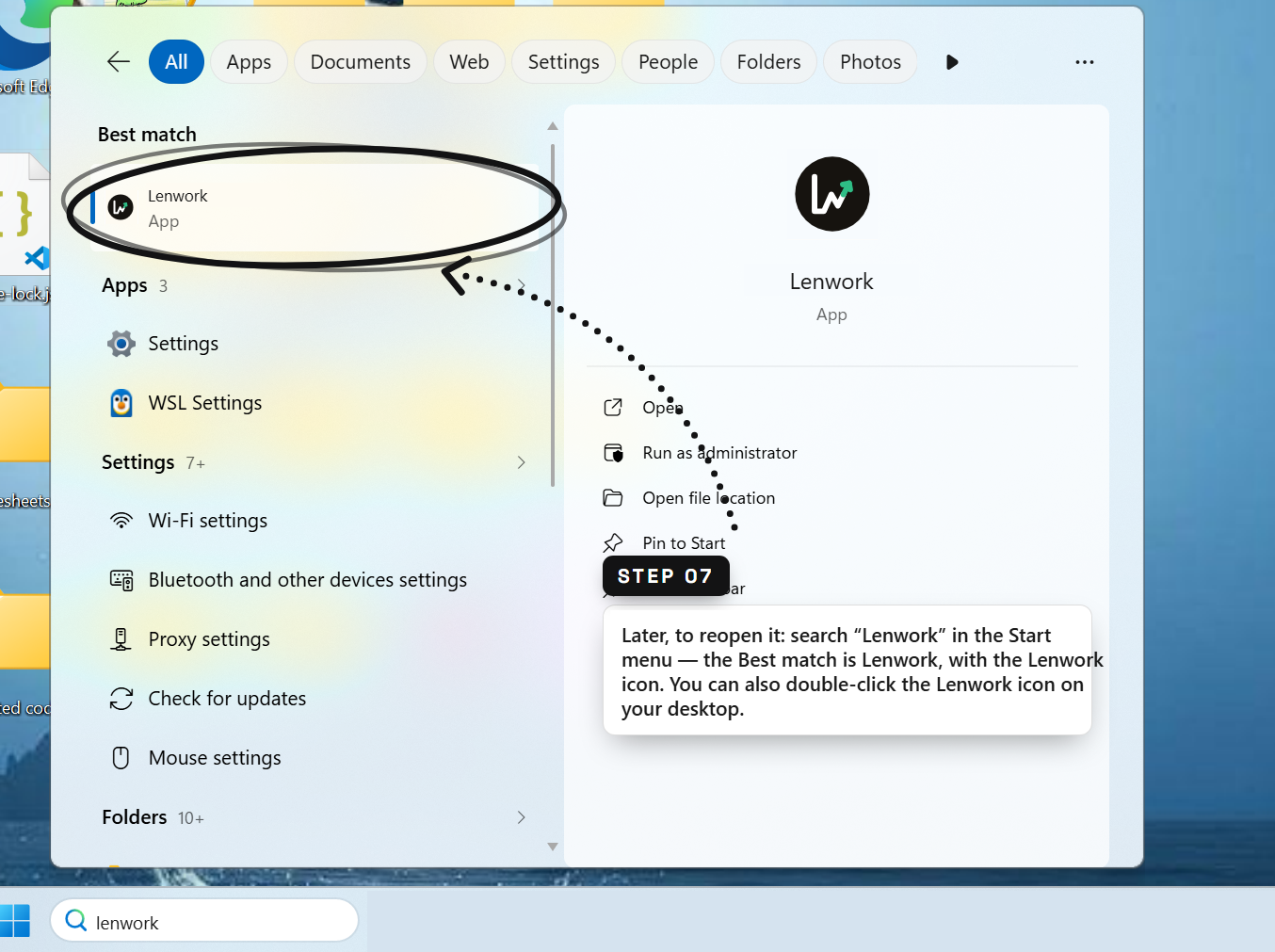
- The app installs as Lenwork, with the Lenwork icon. Search "Lenwork" in the Start menu any time to reopen it.
Install on macOS
- Open the downloaded
Lenwork-macOS.dmgfrom your Downloads folder. - In the window that appears, drag the Lenwork icon onto the Applications folder.
- Open Applications and double-click Lenwork. On first launch, click Open if macOS asks to confirm.
- Find Lenwork any time in Launchpad or by pressing Command and Space to search Spotlight.
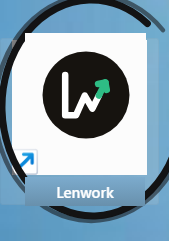
Finding your app icon. The app installs as Lenwork, with the Lenwork icon. Search "Lenwork" in the Start menu, or double-click the Lenwork icon on your desktop, to open it any time.
Create your account and run your first session
1
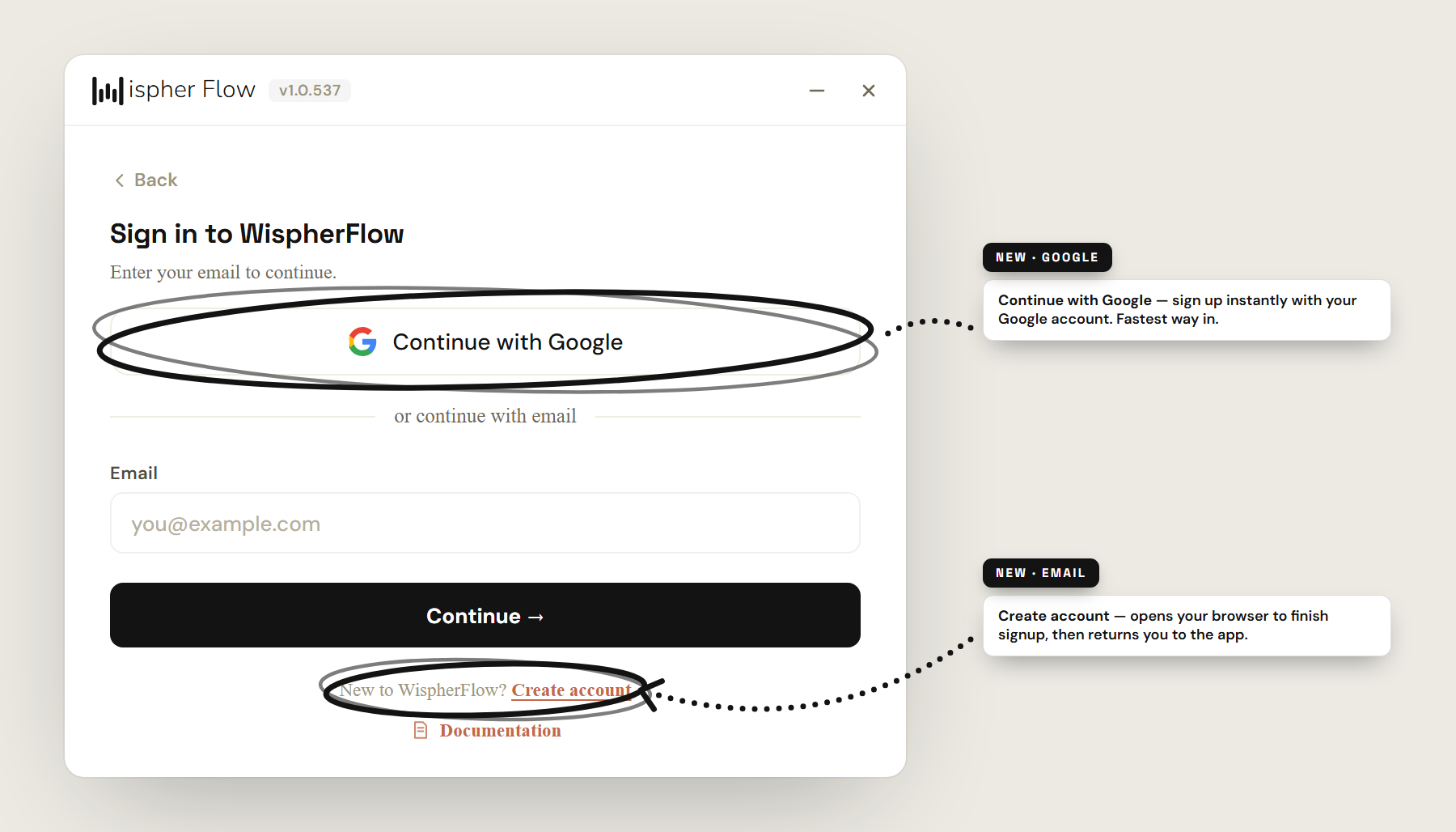
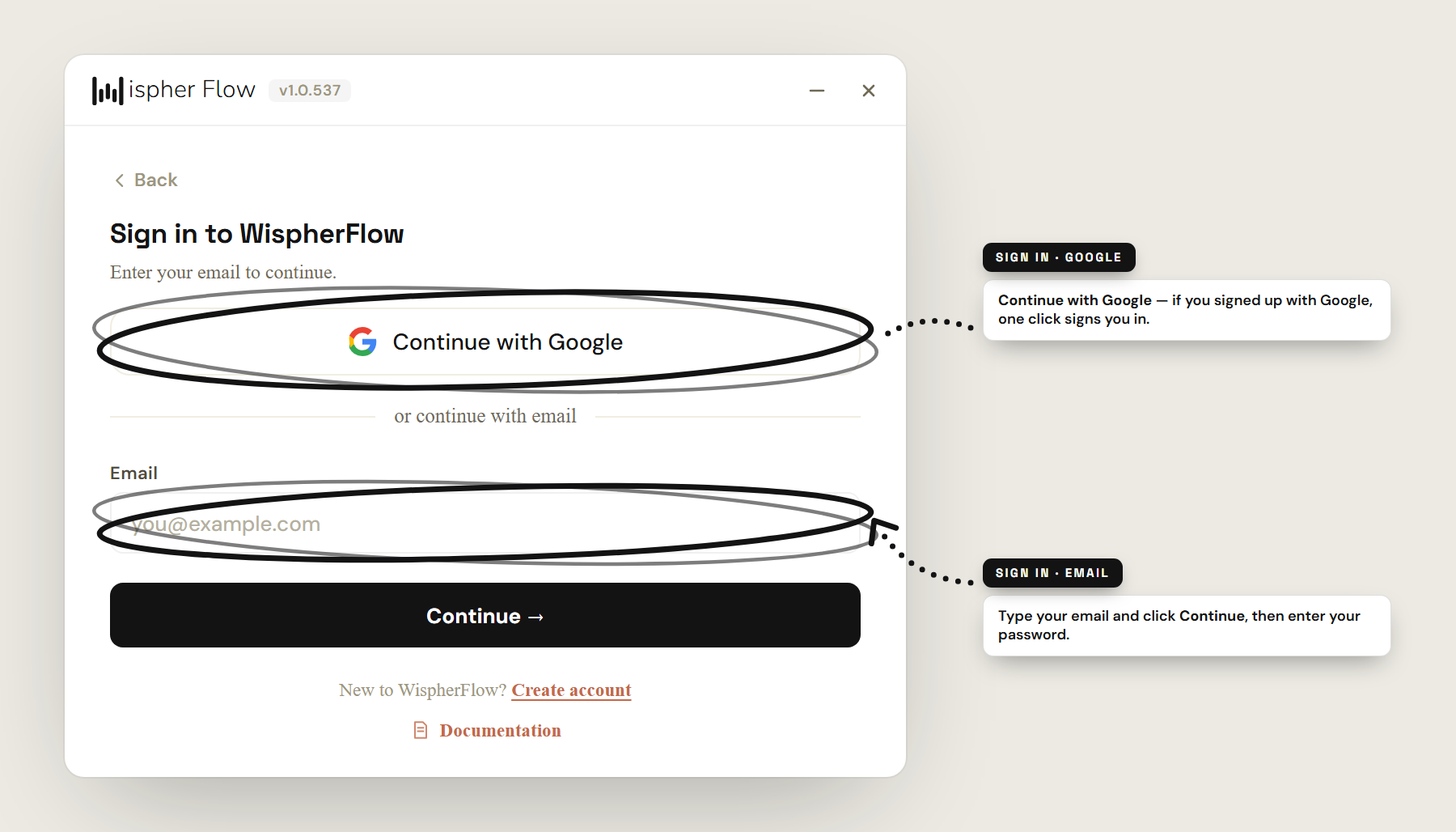
Enter your email. On the sign-in screen, type your email and click Continue. New here? The app takes you straight to account creation.
Enter your email. On the sign-in screen, type your email and click Continue. New here? The app takes you straight to account creation.
2
Set a password (or click Continue with Google). Your studio opens on the Sessions tab.
Set a password (or click Continue with Google). Your studio opens on the Sessions tab.
3
Add a resume in the Resumes tab so the AI can tailor its answers to your background.
Add a resume in the Resumes tab so the AI can tailor its answers to your background.
4
Create a session, join your interview, and Lenwork answers in real time.
Create a session, join your interview, and Lenwork answers in real time.
Tip for real interviews: the desktop app is invisible to every screen-share and recording tool (Zoom, Meet, Teams, OBS). It stays hidden automatically, so you can keep it open beside your video call with confidence.
Need help? Visit lenwork.com/docs or email support@lenwork.com
Lenwork · page 1 of 6